
Open Commerce Manager
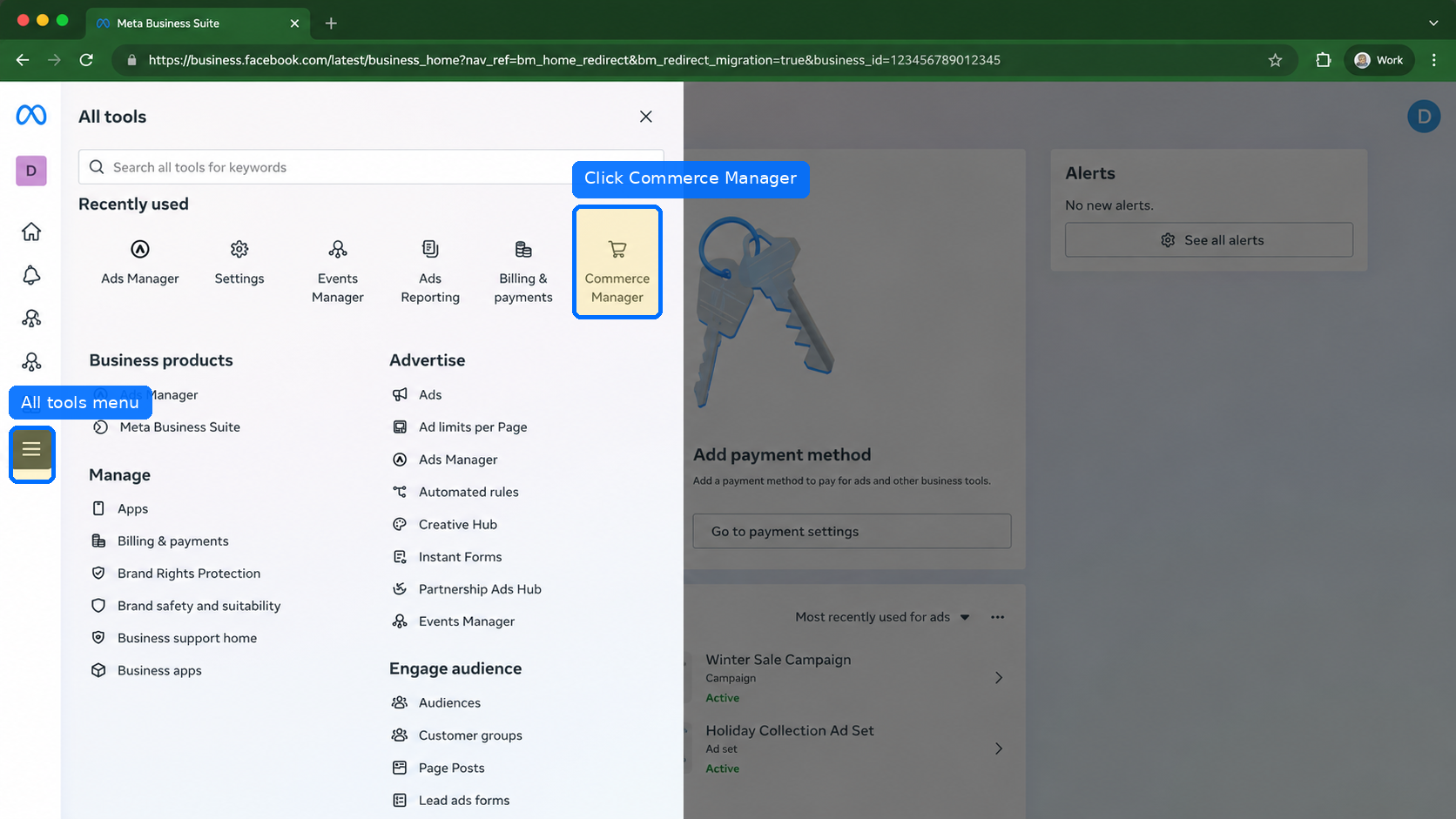
Go to business.facebook.com/latest. Click the three-line All tools menu on the left, then Commerce Manager. You can also open business.facebook.com/commerce directly.

Setup guide · Meta Commerce Manager
Create a catalogue in Commerce Manager, connect your Pixel or Dataset, and upload your Feedfly Meta feed URL — with screenshots for each step.
Copy your feed URL from Feedfly → Feeds in your Shopify admin before you start step 7.
Go to business.facebook.com/latest. Click the three-line All tools menu on the left, then Commerce Manager. You can also open business.facebook.com/commerce directly.
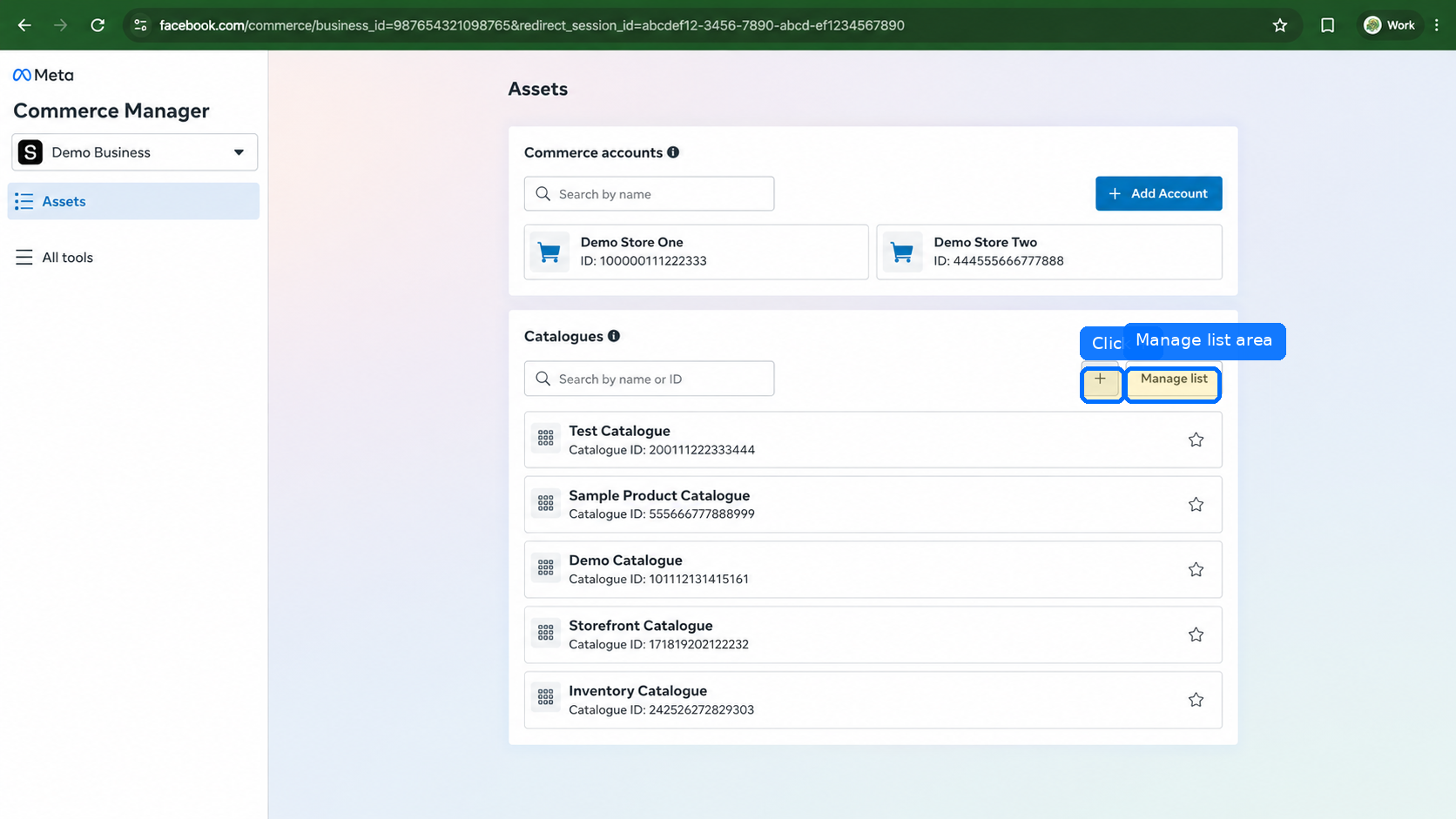
Inside Commerce Manager, open Assets. In the Catalogues section, click the + icon next to Manage list.
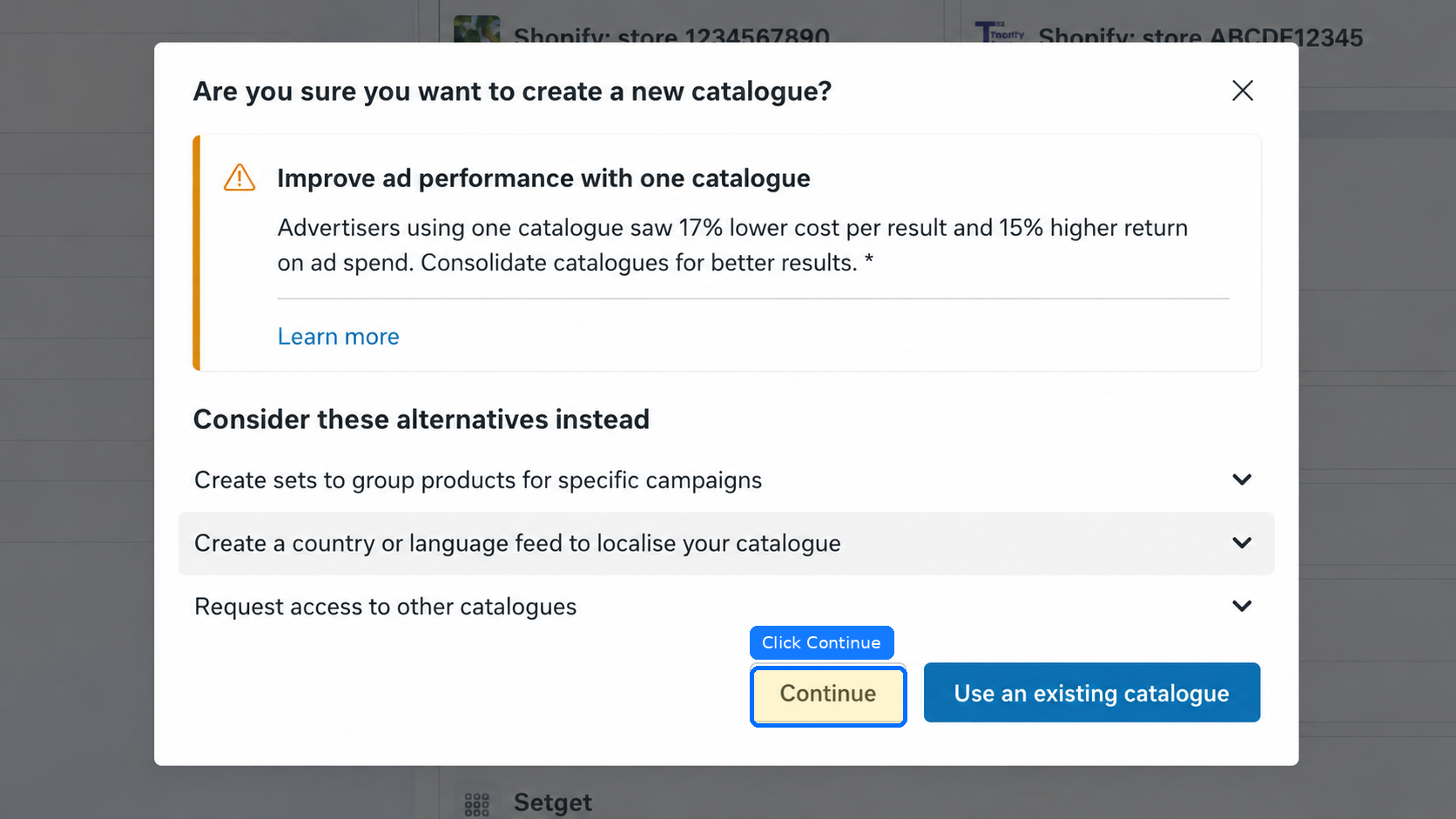
Meta may recommend using one catalogue you already have. For a dedicated Feedfly feed, click Continue to create a separate catalogue.
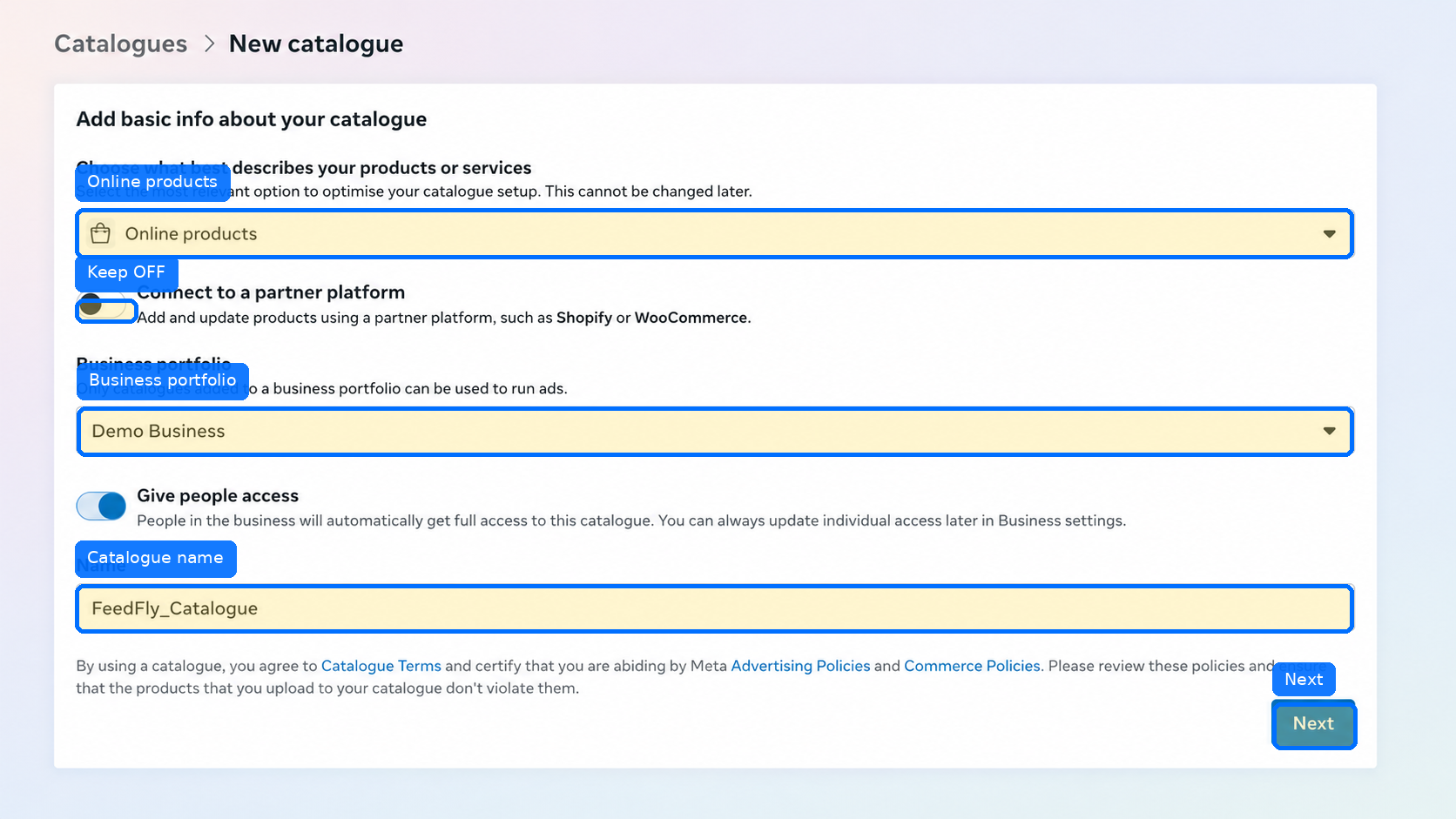
Keep Online products selected. Leave Connect to a partner platform turned off. Select the correct Business portfolio, enter a catalogue name (for example Feedfly_Catalogue), then click Next.
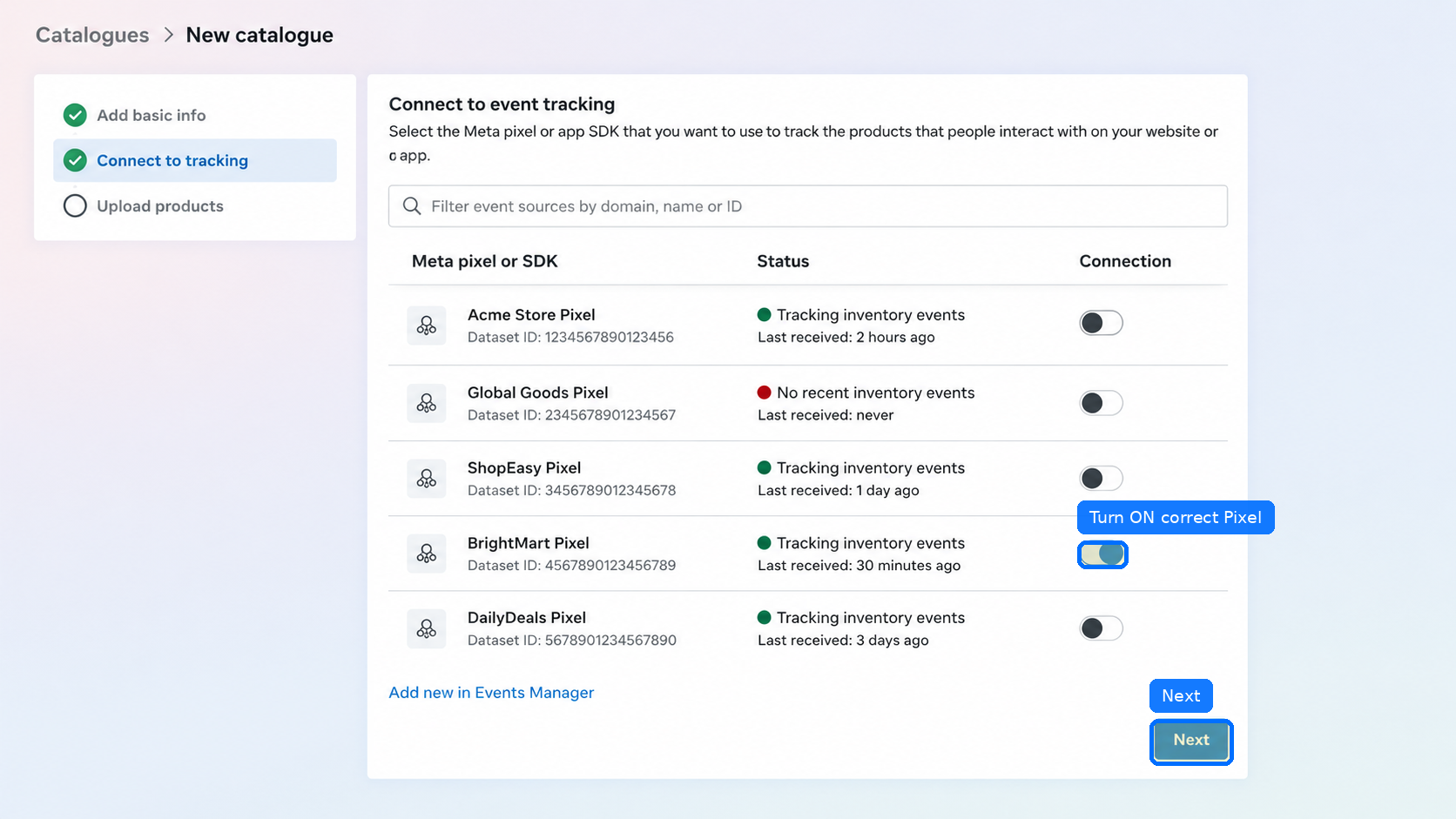
Choose the Pixel or Dataset you use for ads today. Turn on the toggle only for the correct event source, then click Next.
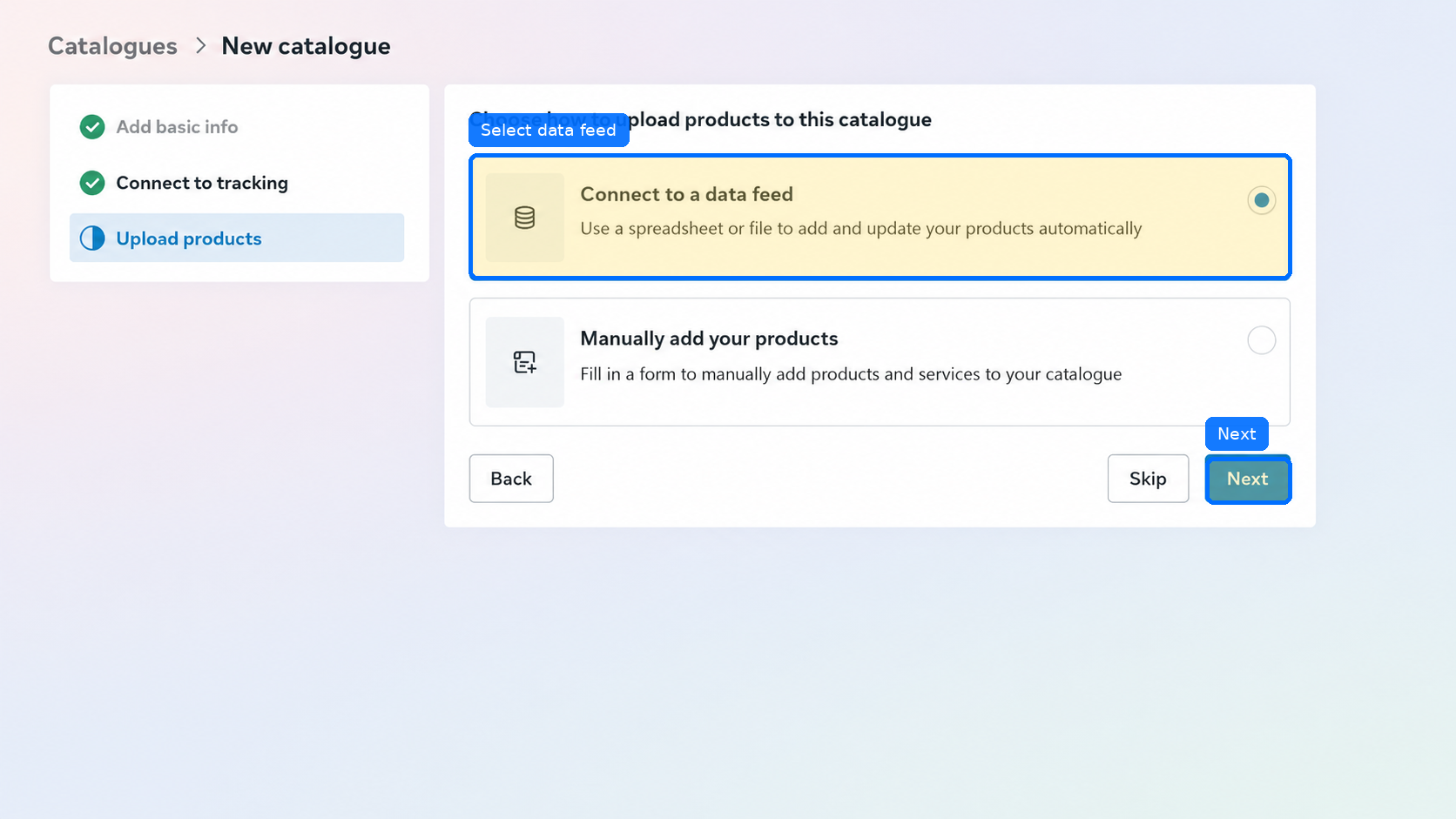
Select Connect to a data feed so Meta can pull product updates from your feed URL automatically. Click Next.
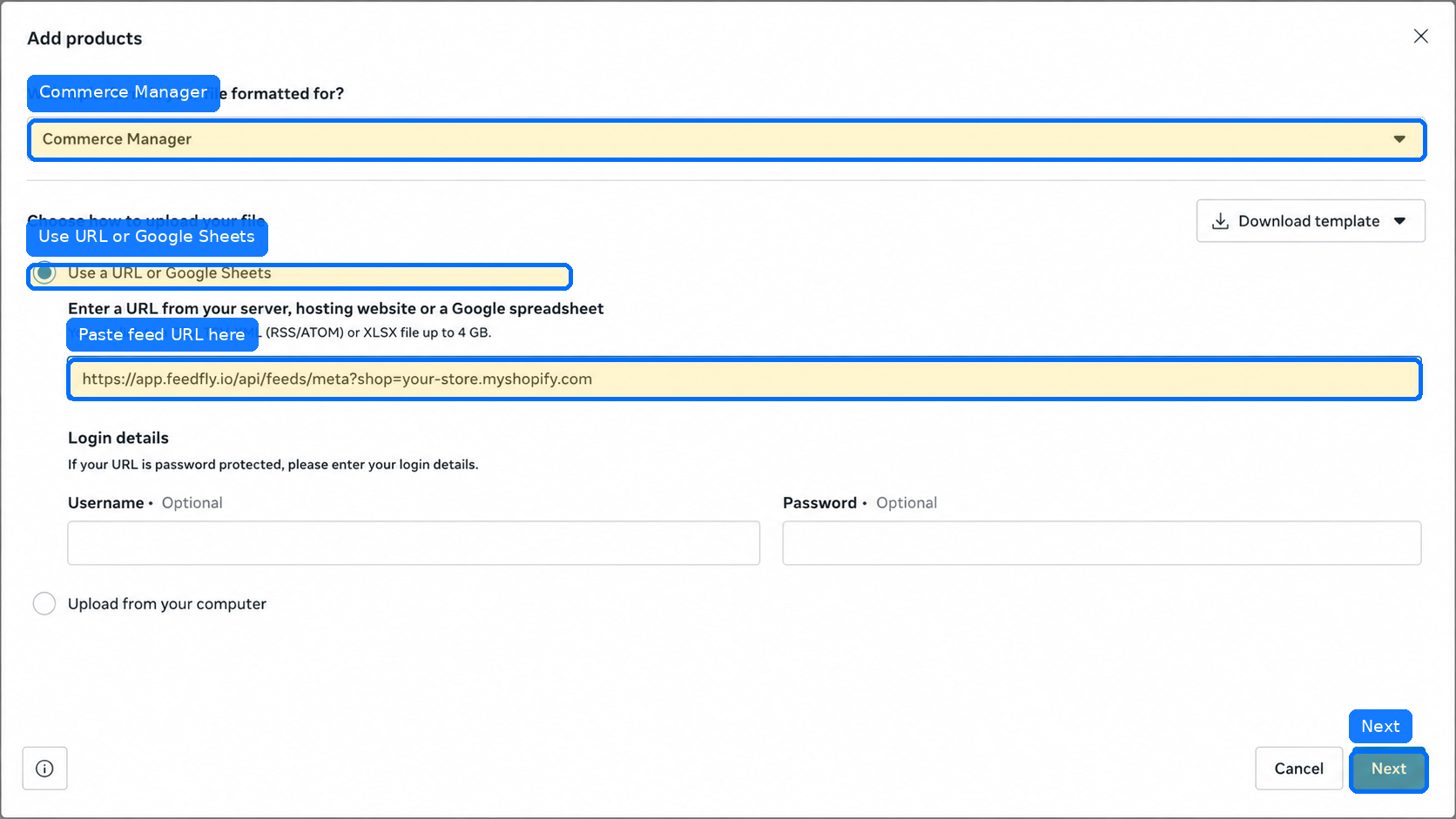
Keep Commerce Manager selected as the file format. Choose Use a URL or Google Sheets, paste the Meta feed URL from Feedfly → Feeds, and leave username/password blank unless your feed is protected. Click Next.
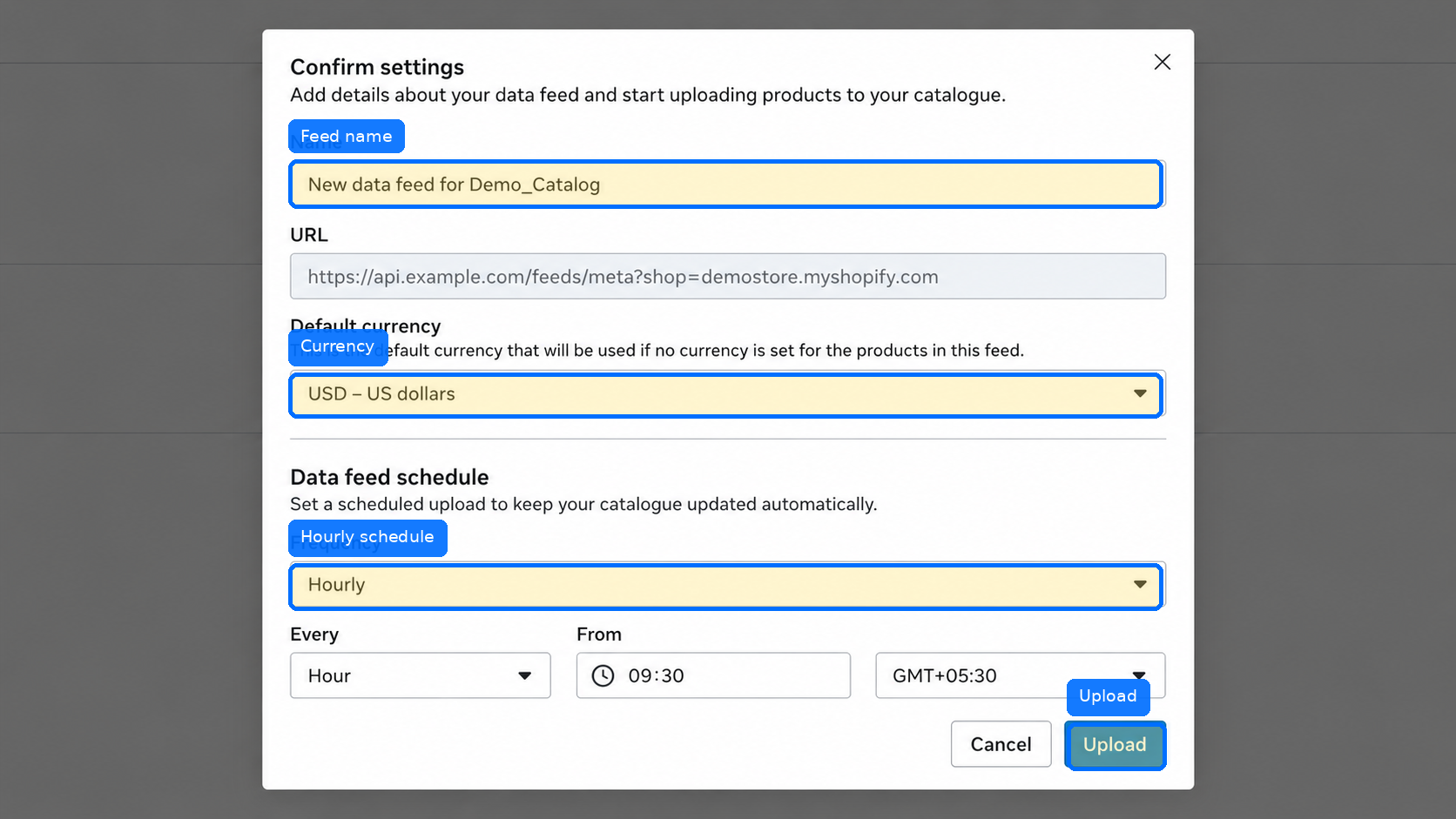
Enter a clear feed name, select the default currency that matches your Shopify store, choose an update frequency (hourly or daily), then click Upload.
Install Feedfly, copy your Meta feed URL, and follow the steps above.
Feedfly is an optimization tool. It does not guarantee approval by Google or Meta.