Open Google Merchant Center
Go to merchants.google.com and sign in with the Google account linked to your Merchant Center. Create a Merchant Center account first if you do not have one yet.

Setup guide · Google Merchant Center
Remove country targeting from an old product source (if replacing one), then add your Feedfly Google feed URL under Settings → Data sources.
Copy your feed URL from Feedfly → Feeds in your Shopify admin before you start step 6.
Go to merchants.google.com and sign in with the Google account linked to your Merchant Center. Create a Merchant Center account first if you do not have one yet.
From the left sidebar, open Settings and click Data sources. Check whether an old source already exists — for example Shopify App API, Shopify app, or another Merchant API source. If you are replacing it, use the ⋮ menu on the right side of that source.
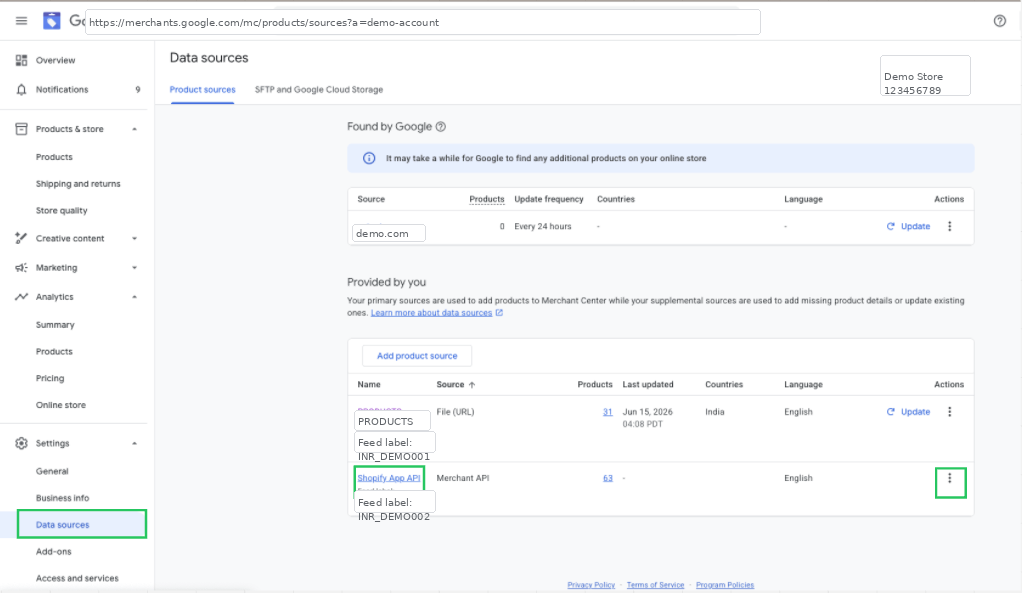
After clicking the ⋮ menu, select Edit countries. This opens the country assignment popup for that existing source.

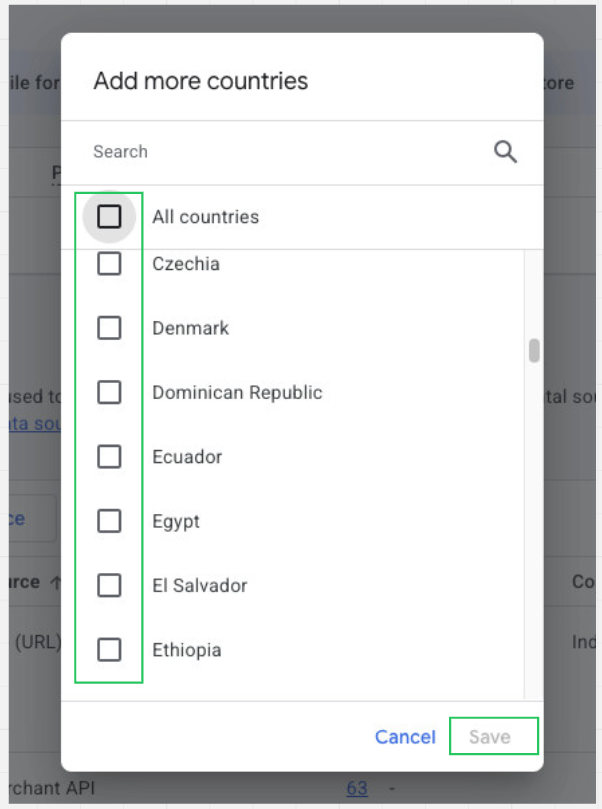
In the Add more countries popup, deselect All countries and any selected countries, then click Save. This stops the old source from serving products in those countries.
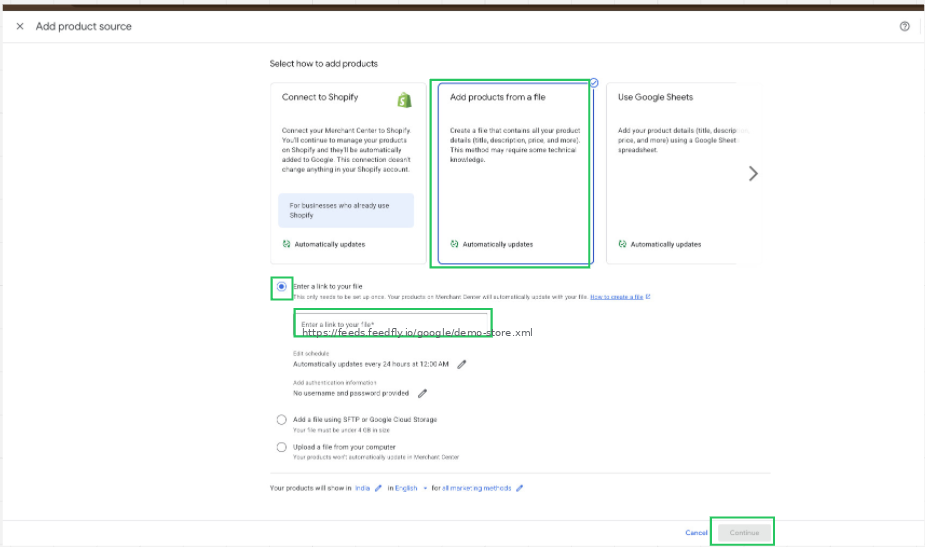
Return to the Provided by you section and click Add product source. This is where you add the new Feedfly Google feed.
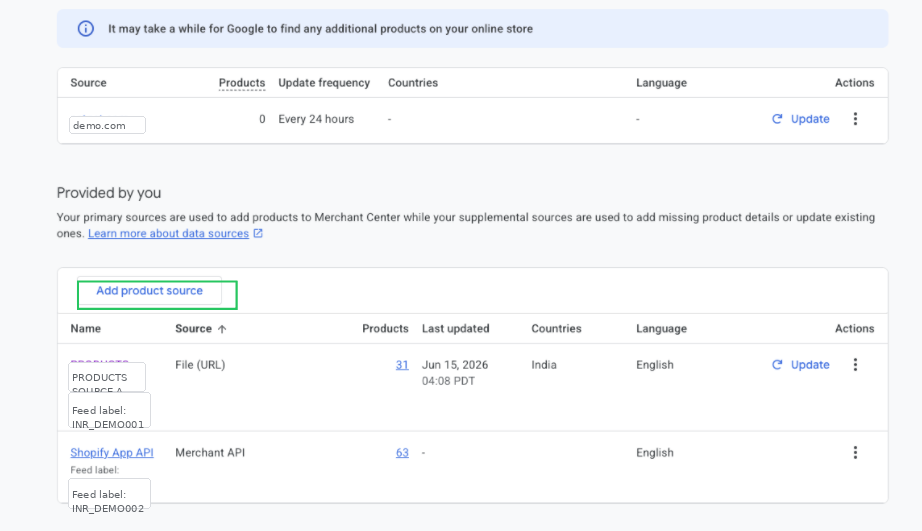
Select Add products from a file, choose Enter a link to your file, paste the Google feed URL from Feedfly → Feeds, then click Continue. Set your fetch schedule on the next screens if prompted.
Install Feedfly, copy your Google feed URL, and follow the steps above.
Feedfly is an optimization tool. It does not guarantee approval by Google or Meta.